

Why a bot account and a token
On GitHub, Codaban is a GitHub App. An App is a first-class identity: it has its own name and avatar, it is installed on an account, it is granted specific repositories, and it authenticates as itself.codaban[bot] writes the reviews.
Forgejo and Gitea have no equivalent. There is no app registry, no install
flow, no per-repository grant, and — the part that actually decides the design —
no app identity. Every API call is made by a user. So the question isn’t “how
do we install Codaban”, it’s “who is Codaban on your instance”, and the only
possible answer is: a user account you create for it.
That is why the setup asks for a token rather than a button:
- The bot account is Codaban’s face. Its name and avatar appear on every
review, every comment, every commit status. Call it
codaban, give it an avatar, and reviews read as coming from a reviewer rather than from you. - Its access is its permissions. Codaban sees exactly the repositories that account can see. Adding or removing it from a team is how you widen or narrow scope — there is no separate “app permissions” screen to get out of sync.
- The token is a credential, not an identity. Encrypted at rest, never shown again, replaceable.
On your instance I’m a user like anyone else. Give me an avatar — my reviews
should look like they came from a reviewer, not from you.
Take an avatar
Save one and upload it to the bot account’s profile.
Codaban · 1024px · the one to use

Framed · 512px · slightly more padding
Use these for a Codaban bot account. They are not a licence to use the mascot
or the wordmark for anything else.
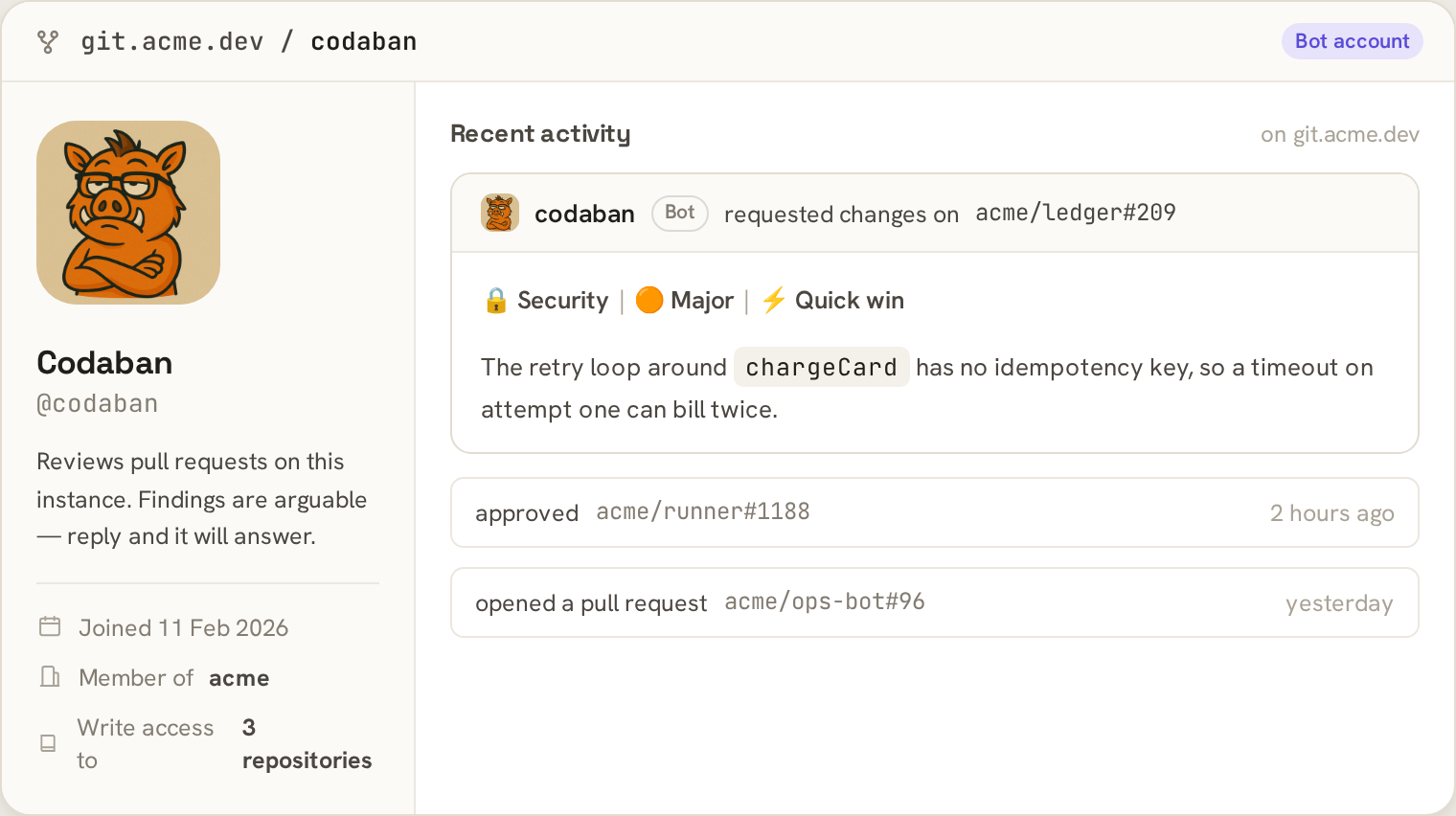
The bot account on a Forgejo instance, with its recent reviews.
What about OAuth2?
What about OAuth2?
Forgejo can act as an OAuth2 provider, and a “Connect with Forgejo” button
would look more like GitHub. It would not help here, for two reasons:
- An OAuth2 token acts as the human who authorized it. Reviews would be posted under your name, not Codaban’s. The identity problem comes back immediately, and the usual workaround is… a dedicated bot account.
- It doesn’t remove a setup step. There is no global app registry, so somebody has to register an OAuth2 application on each instance first — the paste moves from a token to a client id and secret.
Create the token
Create the bot account first if you haven’t. Any Forgejo user account will do. Name itcodaban and give it an avatar, since that is what your team will see
on every review. Then sign in as that account and go to:
Settings → Applications → Generate new token
Give the bot account write access to every repository you want reviewed —
add it to a team, or as a collaborator. Codaban can only see what the token can
see.
Connect it
Control panel → Integrations → Connect a self-hosted Forgejo or Gitea. The panel links straight to the token page on the instance URL you type, so the step above is one click from there.
On submit, Codaban:
1
Verifies the token
Against the instance. A wrong URL or a bad token fails here, with nothing
saved.
2
Creates a webhook
On that organisation, pointed at a delivery URL unique to this connection,
with a secret it keeps to itself.
3
Lists the repositories
The ones the token can see, and registers them.
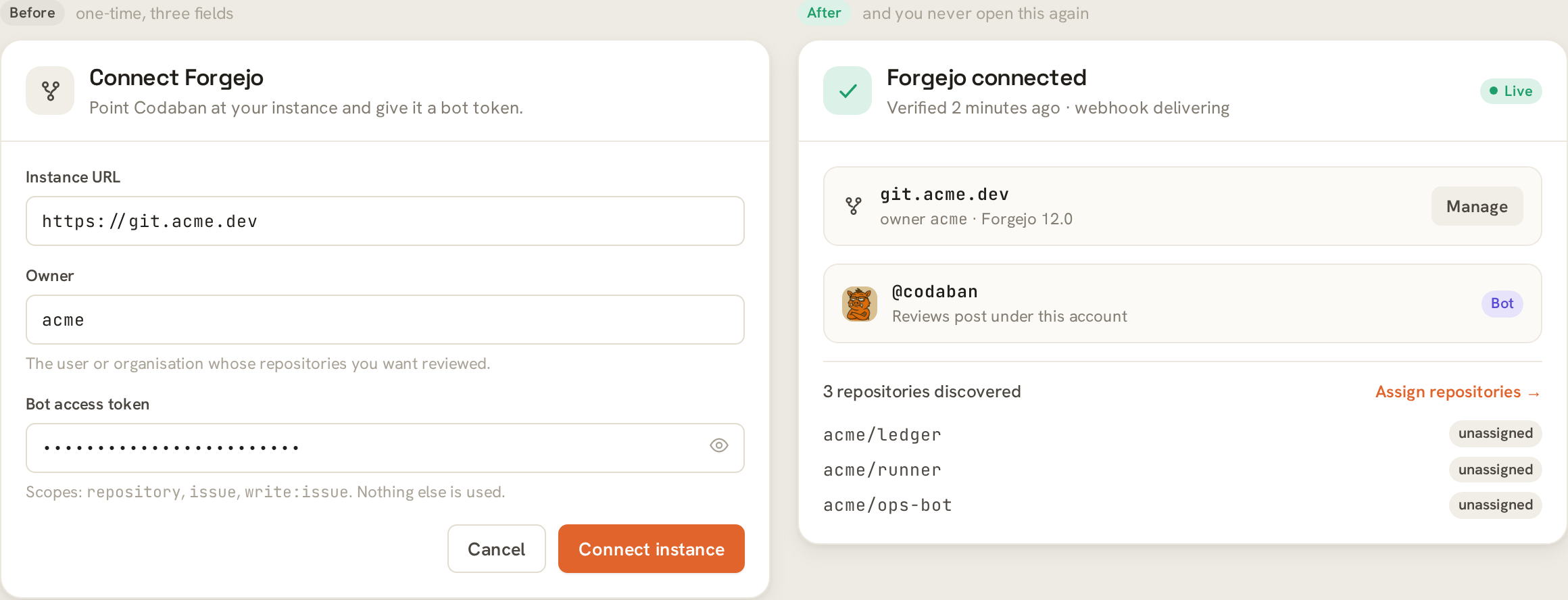
The connect form, and the state that follows it.
Nothing is reviewed yet. Connecting grants access. A repository starts
costing units when you assign it to a workspace, which is what the picker
does.